Beginning May 2026, you can connect your 10x Cloud account to a BioTuring account for an end-to-end workflow that simplifies complex single cell data analysis and exploration. As part of our strategic collaboration with BioTuring, 10x Cloud customers new to BioTuring will receive a 30-day free trial to BioTuring's analysis platform, with preferred pricing available thereafter. Learn more about the partnership.
To get started, you need a 10x Cloud account. For your BioTuring account, you have two options:
- Use an existing BioTuring account.
- Don't have a BioTuring account? Follow the connection steps below. You will be routed to a BioTuring sign-up page, asked to verify your email, and then automatically enrolled in a 30-day free trial.
After connecting your accounts, you can export output files from the 10x analysis pipelines listed below directly to the BioTuring BBrowserX Pro analysis app (BBrowserX Pro documentation). Data export is supported for any version of the pipelines below and library types supported by the 10x Cloud web app.
| 10x Software | Pipelines |
|---|---|
| Cell Ranger | count, aggr, vdj |
| Cell Ranger ARC | count, aggr |
Follow these steps to set up the connection between your 10x Cloud account and BioTuring account.
-
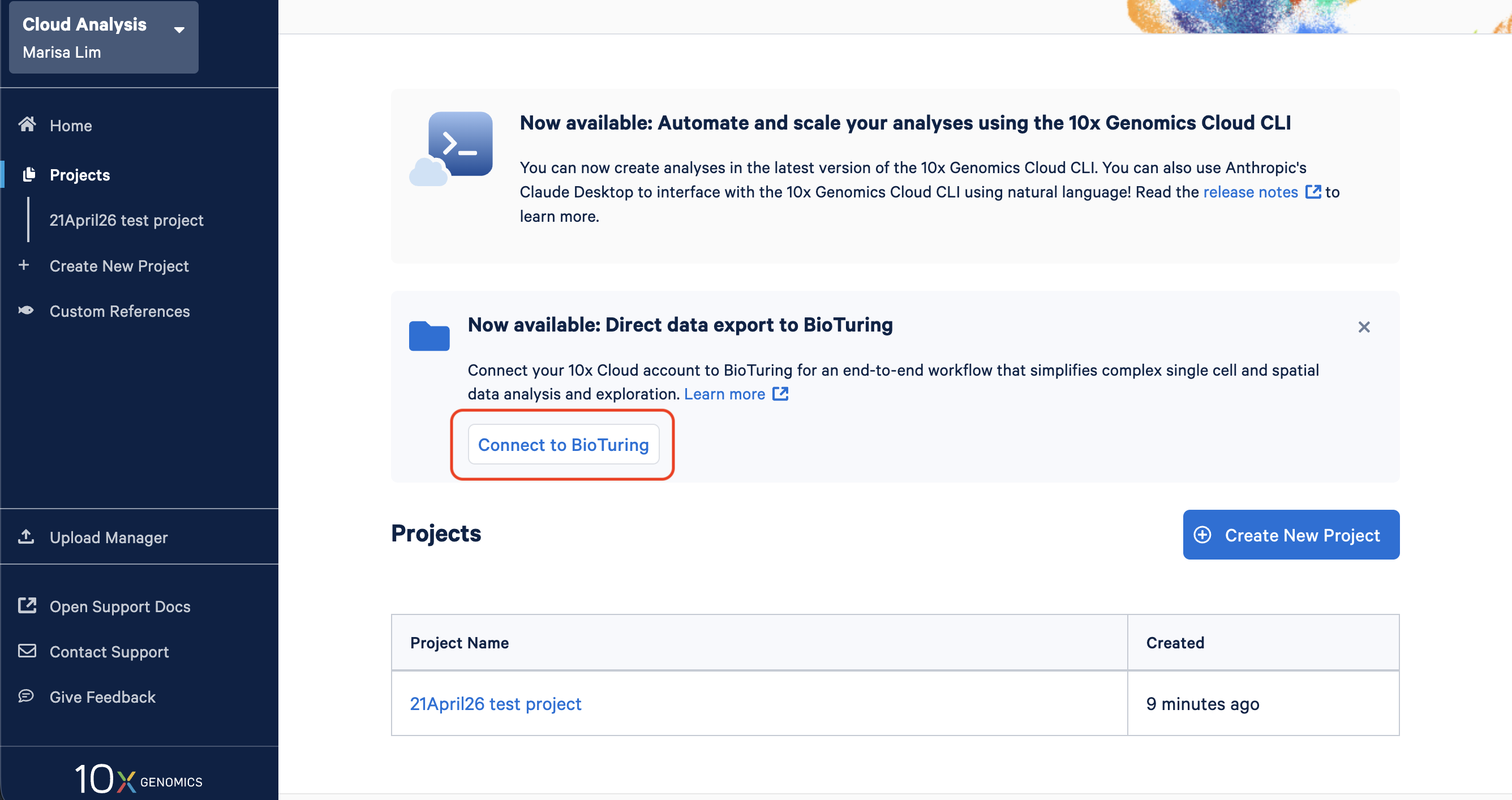
In the 10x Cloud web app, click "Connect to BioTuring". You can also set this up from Account Settings > Security.
-
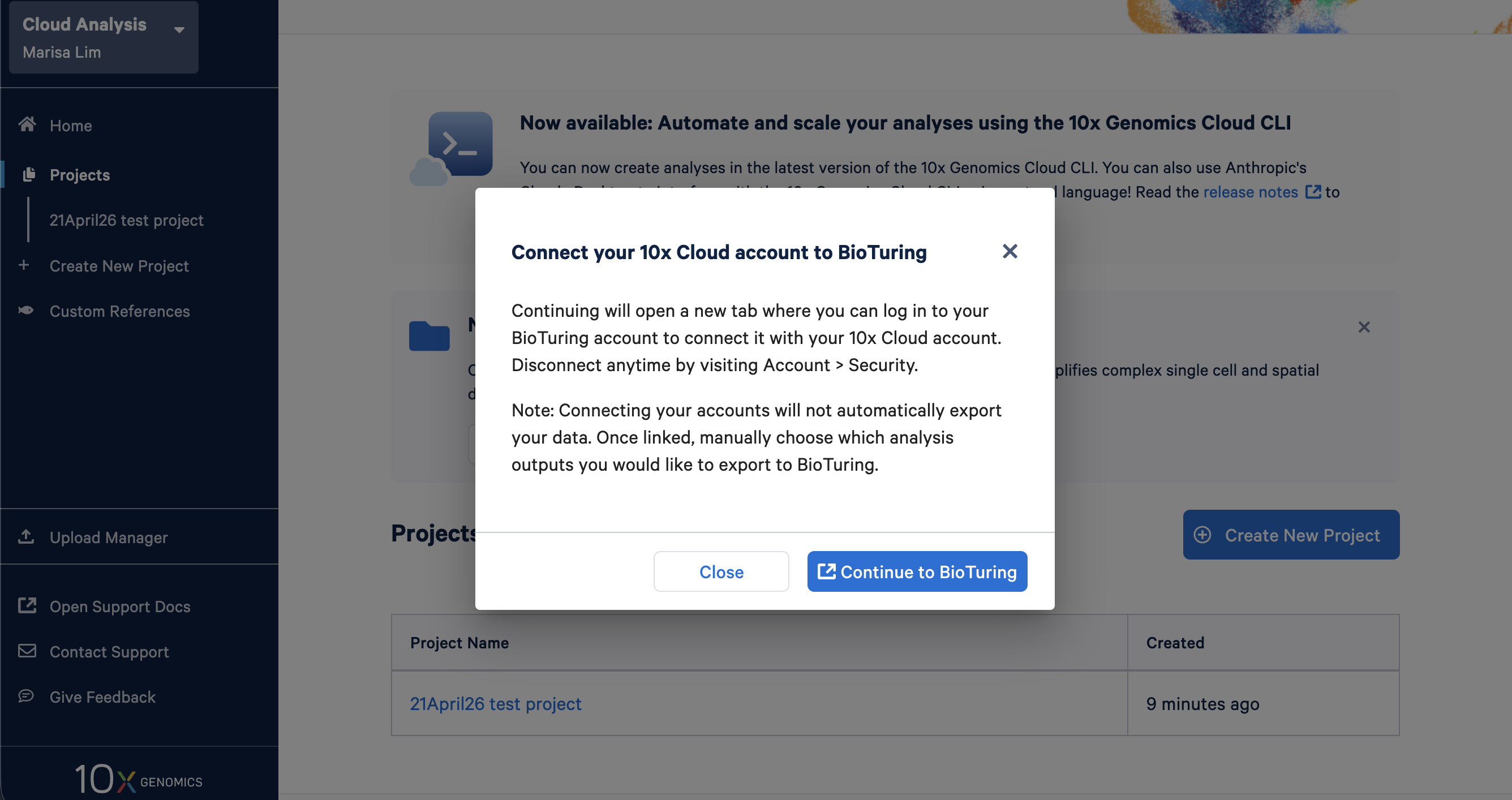
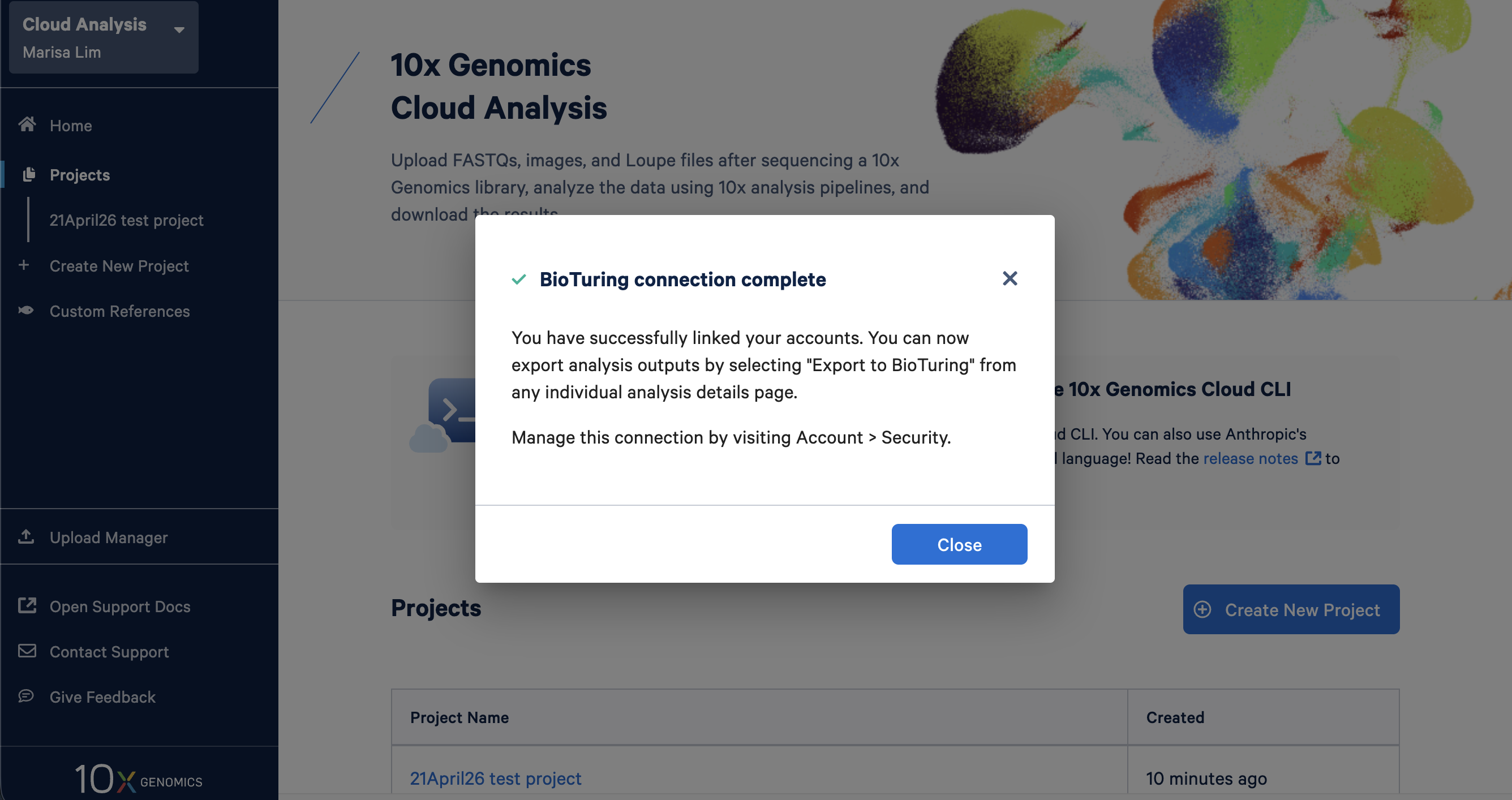
Follow the prompts to connect your accounts. If you have a BioTuring account, log in with your existing credentials (unless you are already logged in). If you do not have a BioTuring account, you will automatically be enrolled in a 30-day trial period on app.bioturing.com.
-
Verify that your accounts have been connected in Account Settings > Security.

Follow these steps to export your analysis outputs to BioTuring.
-
In 10x Cloud, select and a completed analysis, and navigate to the analysis page. When you export data to BioTuring apps, a project and study will automatically be created. They will be named as follows:
- 10x Cloud project name becomes the BioTuring project name.
- 10x Cloud analysis name becomes the BioTuring study name.
-
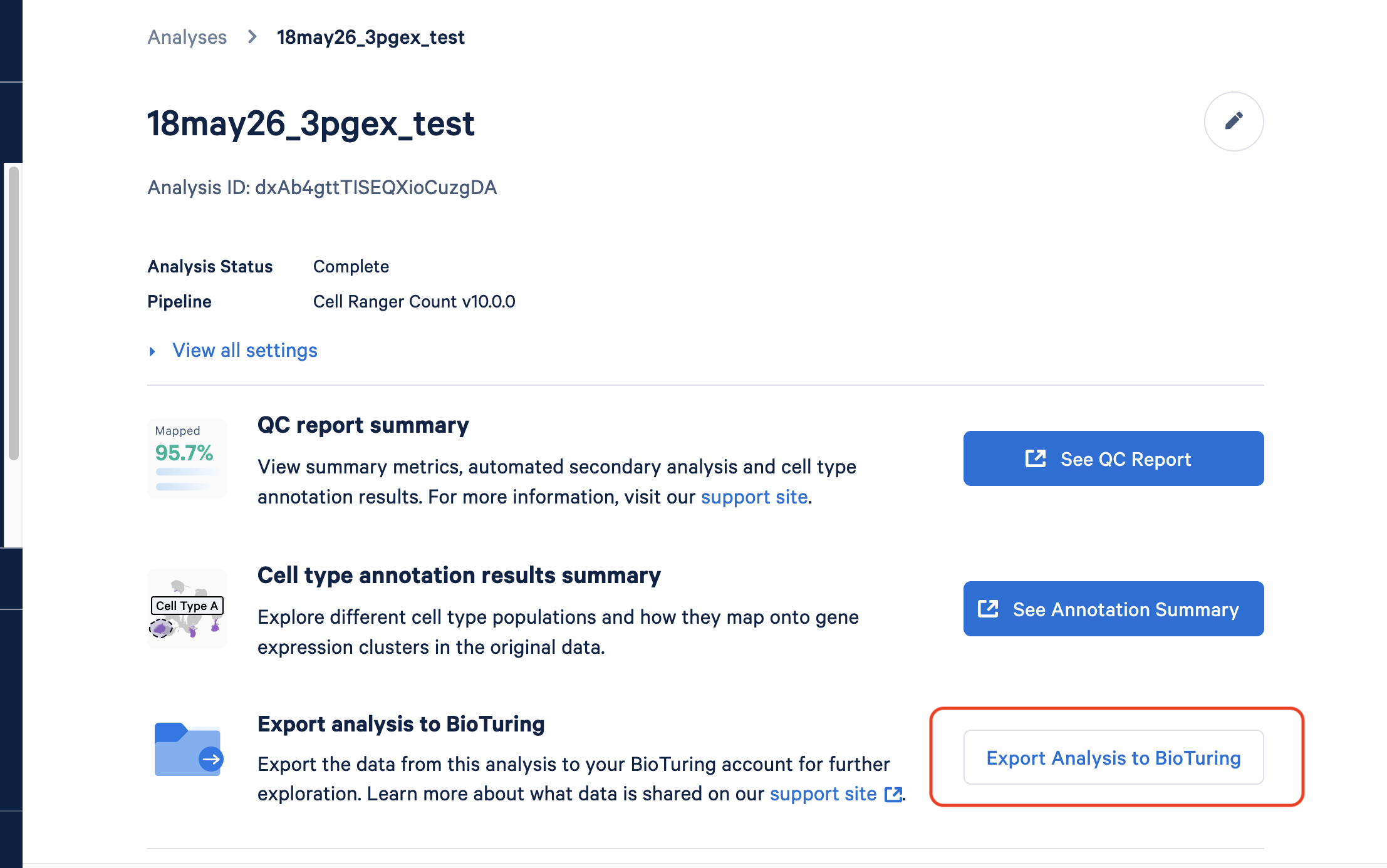
On the analysis page, Click the "Export Analysis to BioTuring" button.
-
Follow the prompts to export data to BioTuring. Note that this function copies output files to BioTuring, so the data remains available in the 10x Cloud web app as well.
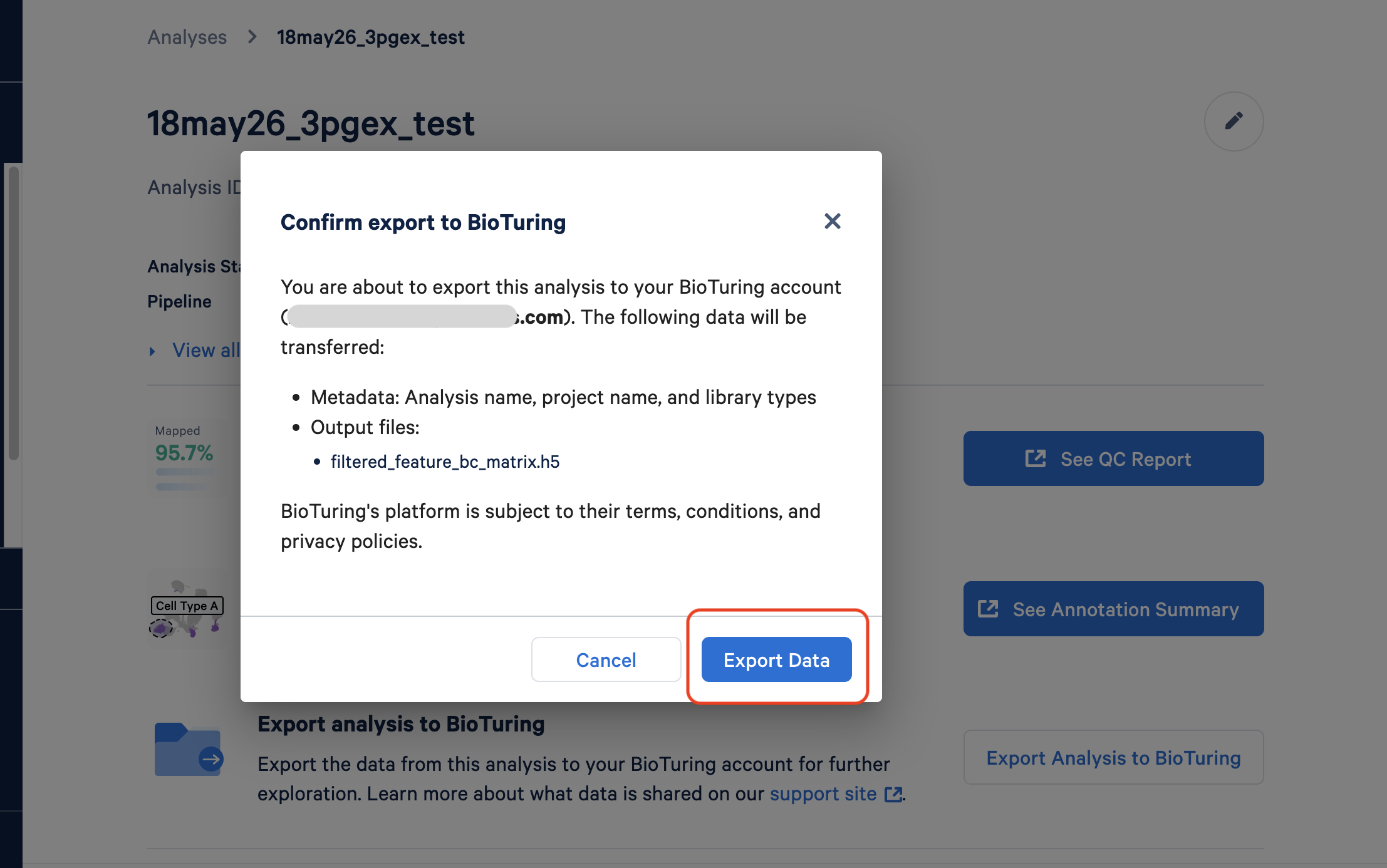
It typically takes a few minutes for the export and study creation process to complete, but may take longer for larger datasets. You can monitor the progress and view the logs in BBrowserX Pro. Learn more about navigating the BBrowserX Pro workspace UI here.
-
The 10x Cloud UI will indicate that the data export has started.
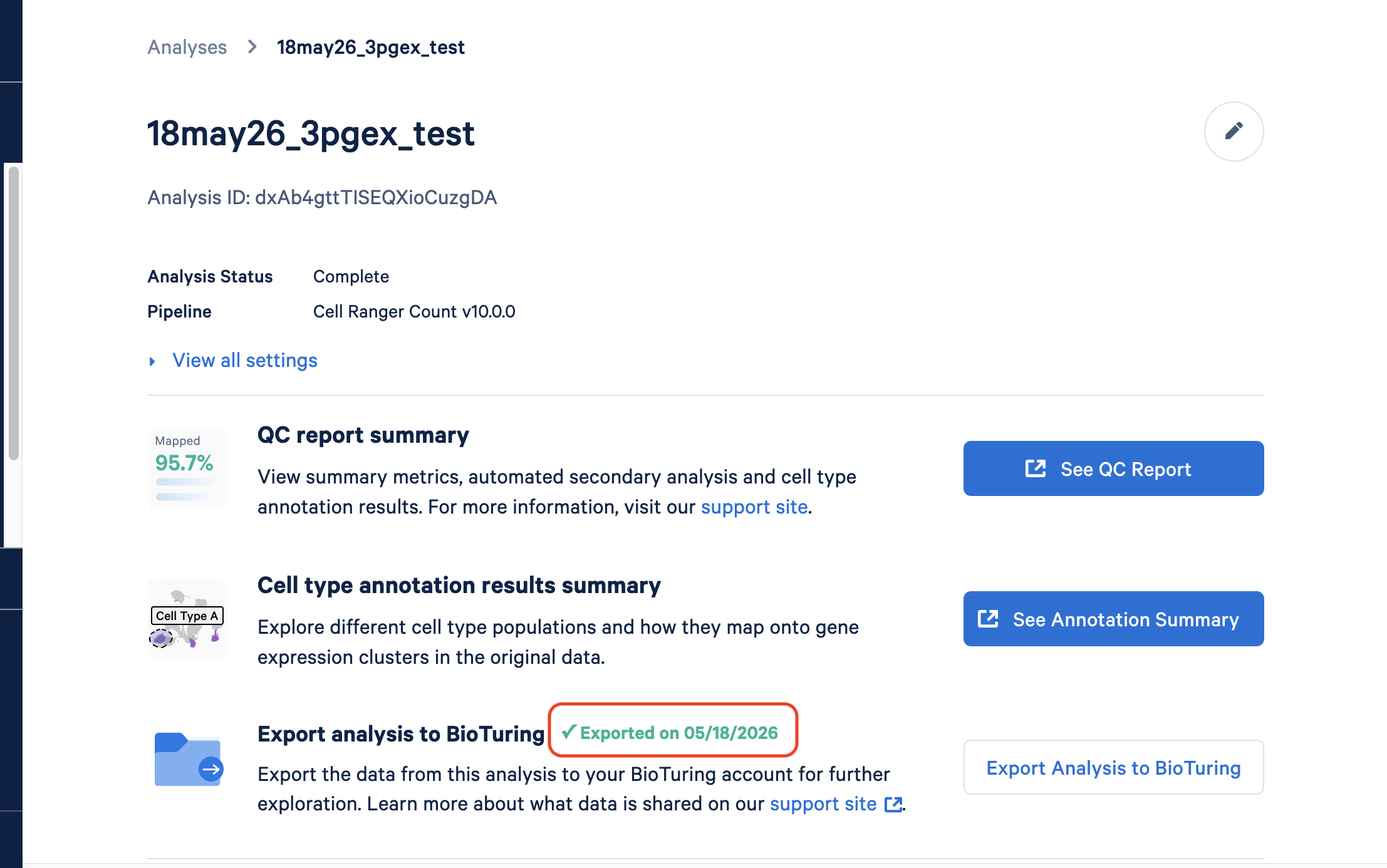
-
When the data export is complete, you will see a new project and study in the BioTuring app.
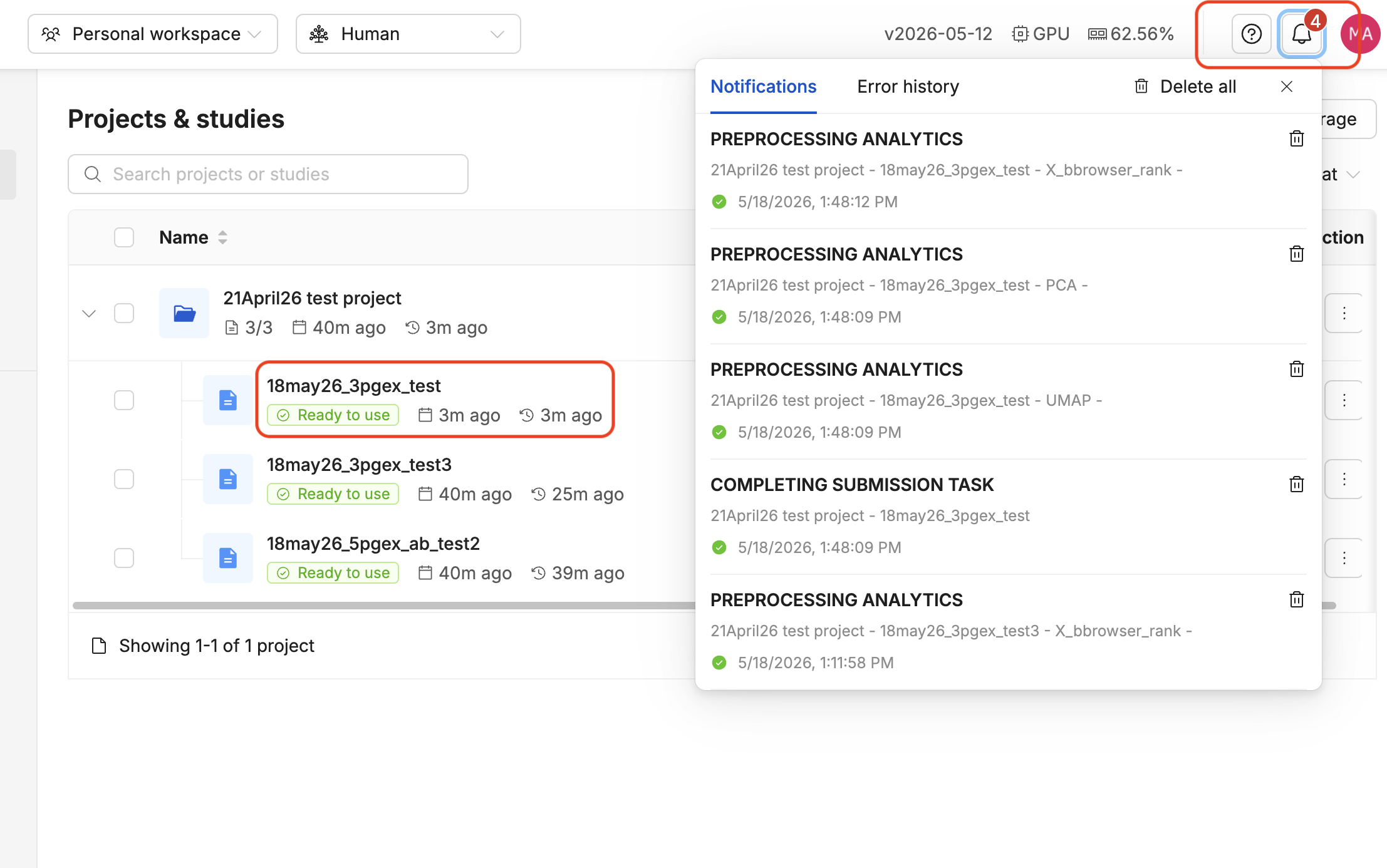
For clonotype analysis in BBrowserX Pro, refer to the documentation for instructions on uploading TCR/BCR files to the BioTuring study.
Re-exporting a previously exported analysis is supported. When you click "Export Analysis to BioTuring" a second time, a confirmation dialog will appear listing the files that will be duplicated as new studies in your BioTuring account.
For questions related to setting up 10x Cloud accounts and exporting data from the 10x Cloud, reach out to support@10xgenomics.com.
For questions related to setting up BioTuring accounts and using BioTuring analysis software, click the "?" icon on the top right of the app and select "Contact us", or reach out to support@bioturing.com.
Troubleshooting account connection and export
-
I clicked "Connect to BioTuring" on the 10x Cloud app, but nothing happened.
Try allowing popups in your web browser settings and then retry. If the connection still fails, reach out to 10x support. Provide your web browser's name and version, and the 10x Cloud account email.
-
I got an error or had to retry connecting my accounts.
This may happen if the connection window sits idle for too long and the security token expires. Try the process again. If the error persists, reach out to 10x support and provide the specific error text and your 10x Cloud Analysis ID.
-
The account connection succeeded, but I don't see my data in the BioTuring app.
Account connection is the first step and does not automatically export your data. Go to your completed analysis page in 10x Cloud and click "Export Analysis to BioTuring".
-
I want to change the BioTuring account that is connected to my 10x Cloud account.
This can happen if you have multiple BioTuring accounts with different emails. To do this, disconnect the current account in your 10x Cloud settings. Then, re-connect the accounts, ensuring that you are logged into the correct BioTuring account when prompted.
-
The 10x Cloud app says the export has started, but I don't see the study in my BioTuring workspace.
Your files may still be processing. Check the study logs. If there is an error status, provide your 10x Cloud Analysis ID and your BioTuring account logs to BioTuring support.
-
My data has been successfully exported to BioTuring, however I see errors in my BioTuring workspace or analysis.
Since the data has exported successfully, there may be an issue on the BioTuring platform side of the account connection. Reach out to BioTuring support.